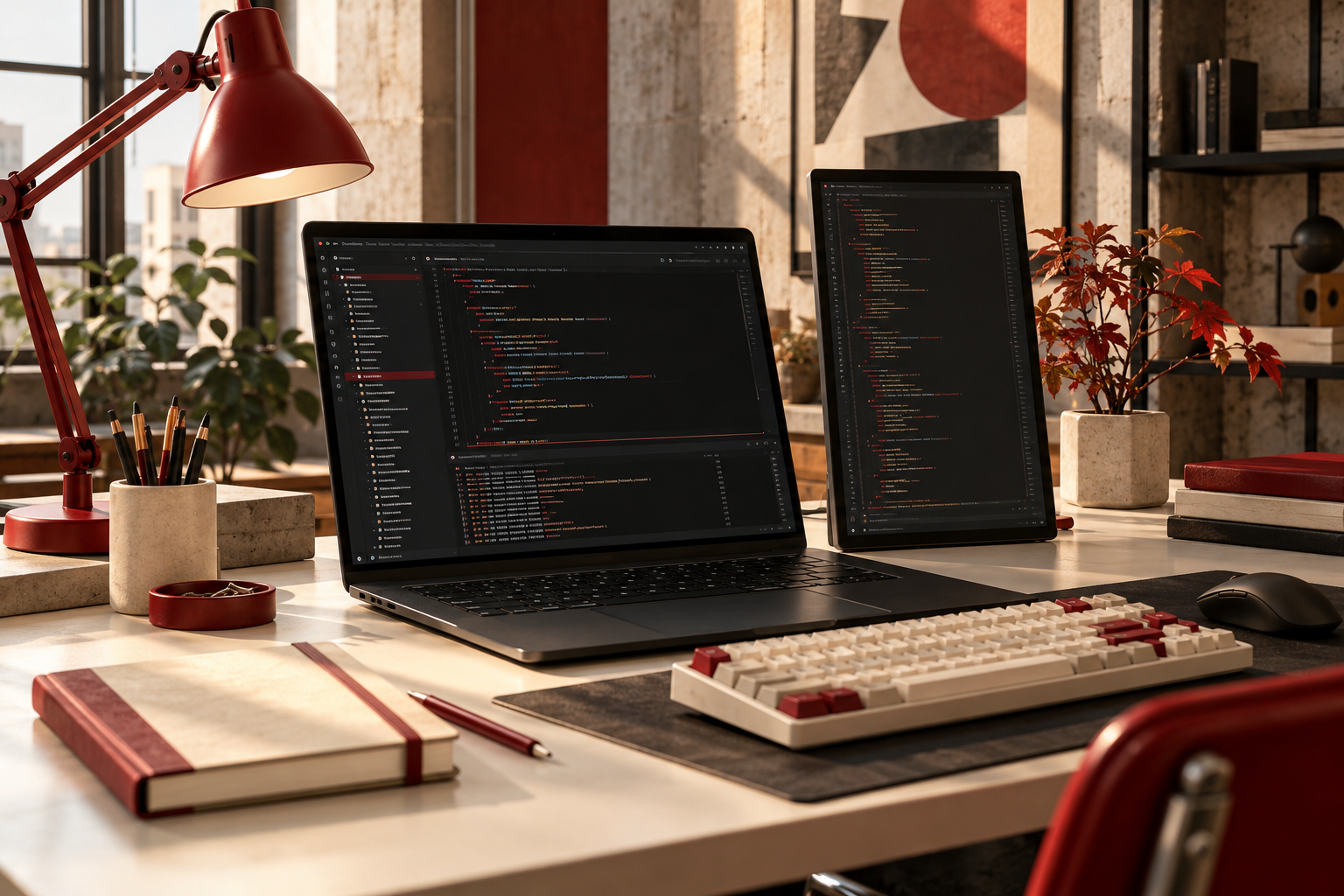
Your code at the centre. Your tools close at hand.
The explorer, editor, terminal, output, tests and debugging tools share one workspace. Open panels when needed and close them to regain space; use the split editor to inspect related files together. A simplified starting view and an advanced view support different working styles, while project-specific layouts and run preferences help you resume without rebuilding your workspace each time.
- Review implementation and tests side by side
- Project-specific workspace arrangements
- Starter and advanced interface views
An organised project flow instead of crowded tabs.
Project folders open as a file tree; every file is not loaded into memory at startup. Preview with a single click and keep a tab by double-clicking or editing. This makes larger projects easier to explore. When a file has unsaved changes, save, discard or cancel closing so you can decide how your work is handled.
- Folder and file explorer
- Preview and permanent tabs
- Explicit handling of unsaved changes
Find your way through longer files.
The minimap shows the overall code structure and your current position. Search within files or across the project, reach files and commands from the keyboard, and browse functions and classes in supported files. Jump directly to a line from an error report, then examine the implementation beside its test to understand the problem in context.
- File and project search and replace
- Function, class and line navigation
- Minimap and split editing
Read structure clearly. Make changes deliberately.
Syntax highlighting separates the elements of supported code. When the relevant language tools are available, completion, go-to-definition, references, renaming and formatting support your work. Review changes affecting multiple files before applying them. The available features depend on the language server: C# intelligence needs external tools such as csharp-ls, and C++ uses tools such as clangd.
- Code intelligence for supported languages
- Review changes before applying them
- Language-server-based development support
Take control of your Python environment.
Keep interpreters, project-specific virtual environments and dependencies visible while building automation, data tools, API clients and utilities. Select an interpreter, create an isolated environment or use an existing .venv so packages belong to the environment running your application. Python itself must be installed separately; KOVKA IDE manages interpreters and environments on top of that installation.
- Interpreter and virtual-environment selection
- Install, update and remove packages
- Export dependencies and restore them elsewhere
Start troubleshooting with Project Doctor.
Inspect the interpreter, virtual environment, package manager and supported dependency declarations when a Python project is opened. See the target and scope of a proposed action before choosing it. The check does not automatically execute your application or build scripts. Distinguishing environment problems from code defects is particularly useful when inheriting a project or returning after a long break.
- Interpreter and environment checks
- Dependency and package-manager inspection
- User-selected corrective actions
Manage libraries in the context of your project.
Work with PyPI/pip, npm, NuGet and, when the required tools are configured, vcpkg workflows. Explore crates.io records for Rust packages and the Open VSX catalogue for extension information; this release does not run VS Code extensions. Review package versions, sources and licences. Selected offline examples are included, while the full catalogue of internet libraries is not bundled.
- Python, JavaScript and .NET package ecosystems
- Review version, source and licence information
- Use supported offline example packages
Build C# projects with .NET tools.
Discover .csproj-based projects and manage target frameworks, build configurations, NuGet dependencies, execution and tests. Your chosen SDK supports work ranging from console applications and business utilities to services, APIs and class libraries. The new-project template targets .NET 10. A visual forms designer is outside the current scope, and C# debugger connections remain experimental.
- Project and target-framework management
- NuGet, build, execution and test tools
- Work with a separately installed .NET SDK
Keep your C++ build workflow together.
Configure CMake projects, discover build targets, select a target and run it from the workspace. CTest and vcpkg workflows are available when their tools are ready. Install the compiler, CMake and any required SDKs separately. Adding a package does not automatically complete every linker or build setting; C++ debugger adapters are experimental in this release.
- CMake configuration and target selection
- CTest and vcpkg workflows
- Develop algorithms, utilities and native libraries
Web, JavaScript and TypeScript in one workspace.
Edit HTML, CSS and JavaScript together and inspect basic web projects with local preview. The packaged Node environment supports the available JavaScript execution workflows, while TypeScript code support and project tools extend the experience. Frameworks such as React and server-based services require their own dependencies and run commands. Opening a file does not mean every tool for its language is already installed.
- Web interfaces and interactive applications
- Supported JavaScript execution tools
- Framework dependencies prepared for each project
Run, inspect the result and keep improving.
Run the active file, define profiles for different entry points, stop an operation or start it again. A terminal opened in the project folder keeps package, build, test and Git commands within the application. If the Python environment changes, the interface notes that an existing terminal may still use the previous environment. Closing the lower panel does not stop execution; use the relevant stop action.
- Run profiles and execution controls
- Integrated terminal and output panel
- Run commands with awareness of their environment
Understand behaviour through testing and debugging.
Discover and run Python tests with unittest and, when installed, pytest. Review passed, failed and skipped results. Use breakpoints, variables, the call stack and stepping to examine execution. The required development tools must be installed in the project environment. Python programs requiring terminal input can use normal execution or the terminal; the current debugger workflow does not support terminal input.
- Run one test or a test collection
- Inspect breakpoints and variables
- Call stacks and step-by-step execution
Track change with Git and local history.
With Git installed, review file differences, stage selected changes, create commits and work with branches and remotes. Remote access requires separate authentication. Local draft recovery and file history help compare previous contents; restoring history first places content in the editor, and saving writes it to disk. Workspace backup is text-focused and does not replace a complete backup of the project folder.
- Git differences, staging and branch operations
- Local draft recovery and version comparisons
- Checks for external changes to files
A starting experience built around learning.
The project wizard brings language, goal, location and environment choices into a clear flow without automatically running programs or installing packages. The learning centre, available through F1, contains 11 chapters, 37 practical steps and a five-question knowledge check. A small Python project connects editing, running, testing, packages, Git and workspace backup into a practical learning path.
- A clear new-project wizard
- Practical guidance that opens the relevant panel
- Learning progress stored on your device
Adapt the workspace to the way you produce.
Choose KOVKA Anthracite, Cream, Burgundy, Graphite or High Contrast. Adjust font size, indentation, wrapping, the minimap and code intelligence, and turn off optional visual effects. The interface and training are available in Turkish and English. Contents load on demand: limits are 20 MB per editable file, 100 MB of loaded text, 20,000 catalogue entries per project and 30 open projects.
- Five branded themes and a focus view
- Turkish and English interface and training
- Project contents loaded when needed
Local development with clear usage terms.
Editing does not need a cloud account, and many operations work offline once tools and dependencies are installed. Package downloads and remote repositories use the internet. There is no built-in AI assistant. The free distribution is Windows x64; macOS, Linux and ARM64 installers are not included. Code signing and an automatic update server are not yet configured. The MIT source licence and third-party component licences apply on their own terms.
- Current release without subscriptions or accounts
- Project-trust actions under user control
- Update through a new installer when released